
Most Linux fleets are still reached the same way they were twenty years ago: a public key copied into authorized_keys, a few shared accounts, and a password or two kept for emergencies. Keys outlive the people who made them, nobody is quite sure who can reach which server, and when something goes wrong there’s rarely a record of what was actually typed.
Keyreeve is our answer to that. It gives people SSH and Kubernetes access through the single sign-on they already use, and decides at every login what they may do. Four things set it apart:
- Every session is recorded, and the recordings are encrypted, signed and access-controlled.
- FIPS-approved cryptography throughout, built on a FIPS 140-3 validated module.
- Controlled, auditable AI access: AI agents can help engineers troubleshoot hosts and Kubernetes over MCP, but only where they’re allowed, and every keystroke is on the record.
- Break-glass access that works no matter what: SSH is locked down to Keyreeve, except for the emergency accounts you choose, which still work if Keyreeve itself can’t be reached, and tell you every time they’re used.
And it all comes together in the Keyreeve desktop app, where we expect most people to spend their working day.
Sign in once, get a short-lived certificate
Keyreeve signs people in through your identity provider with OpenID Connect, and it can work with several providers at once. Groups from the identity provider map onto Keyreeve roles and access rules, so access follows the groups you already manage.
After signing in, a person gets a short-lived SSH certificate (eight hours by default) instead of a long-lived key:
keyreeve login
ssh admin@web01
The keyreeve command line tool makes a fresh key for every sign-in, gets the certificate once the person approves it in their browser, and loads both into ssh-agent. The approval goes straight back to the tool on that computer, so a link someone else sends can’t sign them in as you. From then on, ordinary ssh, scp and IDE remote tools just work. When someone leaves, removing them from the identity provider is enough: their certificate expires within hours, and they can’t get another.
A certificate on its own doesn’t open anything. At every login, the host decides which accounts that person may use there, from the access rules you manage in the web interface, which Keyreeve sends to each host: by group, host and host group, with optional sudo (with a warning when a granted command is a known way to a root shell), temporary access that an approver grants for a set time, and audited break-glass access for emergencies. Hosts are certificate-only by default, and a new host has to be approved by an administrator before it’s trusted.
The Keyreeve desktop app: where engineers work
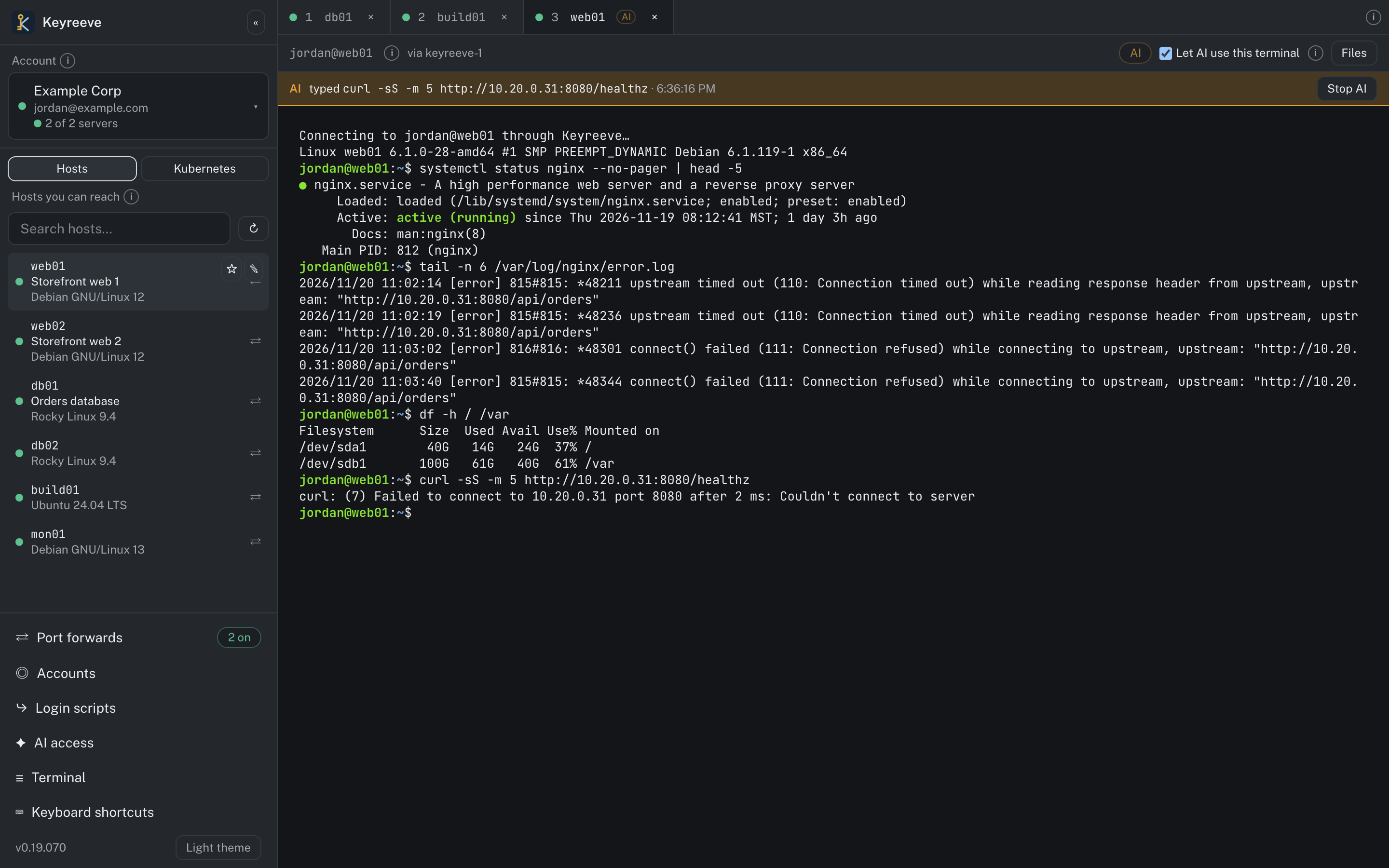
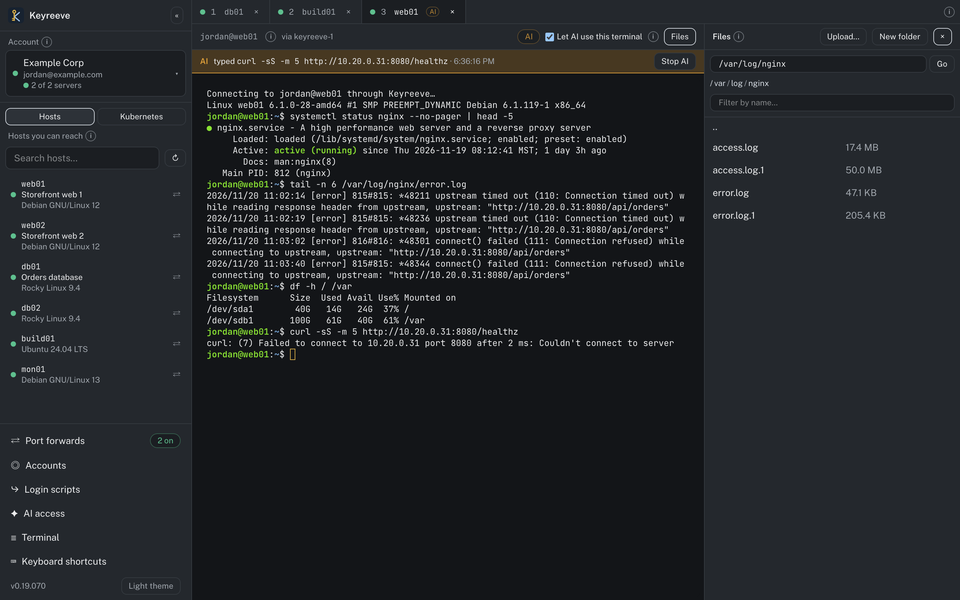
Most people will spend their day in the Keyreeve desktop app, available for macOS, Windows and Linux. It puts every host and Kubernetes cluster you’re allowed to reach in one window, signs in with your single sign-on, and records every session exactly as the server does. (The screenshots here use example data.)
- Tabs on every host you can reach. Search hosts by name, friendly name, tag or group, and open as many terminals as you need. Tabs are numbered, with keyboard shortcuts to switch between them quickly. You can give hosts your own names, tab colours and favourites.
- Several accounts side by side. Keep your everyday and privileged identities, or several Keyreeve servers, in one window, each with its own tabs. When Keyreeve runs on several servers, the app spreads new tabs across the healthy ones and a dropped tab reconnects through another.
- Files beside the terminal. Browse, upload and download files on the host you’re working on, without a separate tool.
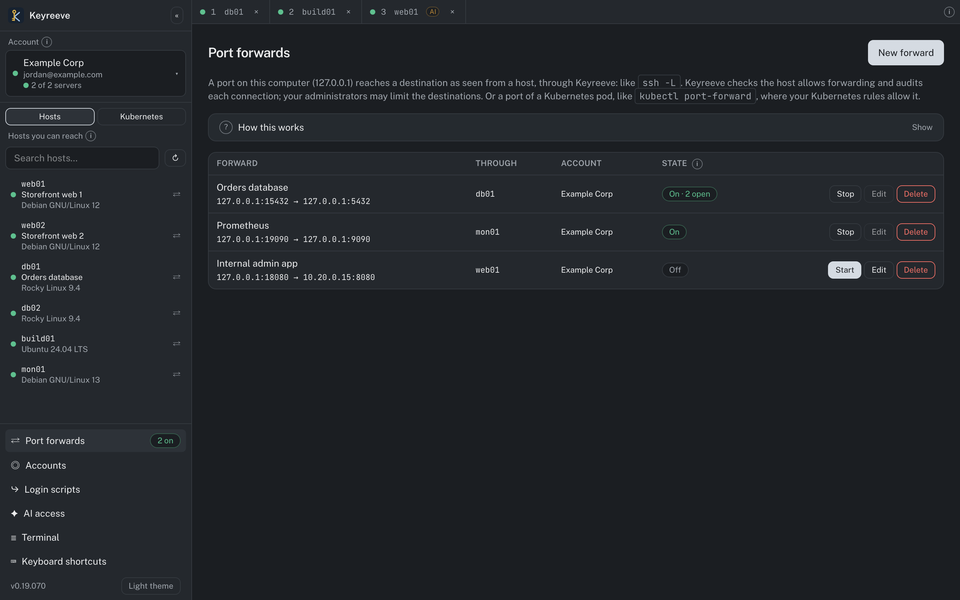
- Port forwards. Make a database, dashboard or internal web app reachable on your own computer, through a host (like
ssh -L) or straight to a Kubernetes pod (likekubectl port-forward). Keyreeve checks each forward against the host’s settings and audits every connection. - Login scripts answer the prompts you see every time you connect, for just you or for the whole team.
- Your own SSH connections, too. Machines outside Keyreeve can be kept in an encrypted vault behind a master password, which also protects the app’s own sign-in key.
Kubernetes in the same window
Switch the sidebar to Kubernetes and the app lists the clusters, namespaces and pods your access rules allow, with each pod’s state, readiness and restarts. From there you can:
- Read a pod’s log, following it live, or the previous container’s log after a crash, and save it to a file
- Open a shell in a pod, recorded like any SSH session, picking the shell that pod has
- Open a kubectl shell: a terminal with
kubectlalready pointed at the cluster, acting as you, for exactly what your rules allow
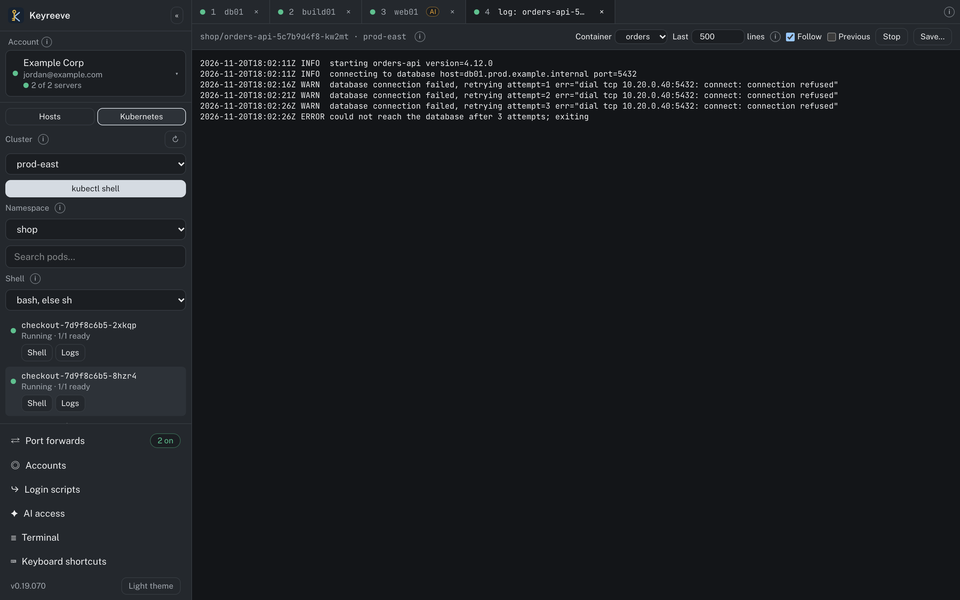
Hosts and clusters sit side by side, so following a problem from a failing pod to the server behind it is a matter of switching tabs.
Every session recorded, and the recordings protected
Every SSH session is recorded on the host by a recorder that people can’t simply step around: if a login’s processes slip past it, Keyreeve ends that login. The host’s kernel audit log adds a second record of the programs run in each session. Recordings stream to the Keyreeve servers as the session happens, so administrators can watch live, search what was typed and shown, and replay a session afterwards with a line-by-line record of who typed what. Sessions through the browser, the desktop app, the SSH gateway and Kubernetes shells are recorded the same way.
A recording is only useful if it can be trusted, so Keyreeve protects it at every step:
- Encrypted on the host for the Keyreeve servers before upload, so a recording waiting on disk can’t be read on the host itself
- Encrypted at rest with AES-256-GCM and a separate key for every recording, and still searchable through a blind index without being decrypted
- Signed and chained: each piece of a recording is signed by the host’s agent and linked into a hash chain, so missing or altered pieces show up
- Secrets redacted: passwords typed at prompts, and patterns you define, are removed before recordings are stored
- Controlled viewing: a dedicated auditor role, an optional second person’s approval before anyone watches a recording, and every playback in the audit log
- Retention and legal hold, so recordings are kept as long as your policy says, and longer when they have to be
FIPS-approved cryptography
Keyreeve uses FIPS-approved algorithms throughout: ECDSA P-384 for its certificate authorities, ECDSA P-256 for user keys, AES-256-GCM for encryption and PBKDF2 with SHA-512 for local passwords. Ed25519 keys are deliberately not accepted. The servers, host agents and command line tool are built on the Go Cryptographic Module v1.0.0, validated under FIPS 140-3 (CMVP certificate #5247), and run it in FIPS mode. Host agents and the command line tool reach the servers only over TLS in FIPS mode, and agents prove who they are with their own client certificates (mutual TLS).
AI access that’s controlled and auditable
Engineers already paste terminal output into AI assistants and paste the answers back. Keyreeve gives that a proper, accountable path. It includes an MCP (Model Context Protocol) server, so an AI agent such as Claude can work in an engineer’s open terminal: it can list the terminals the engineer has open, run a command and read its output, or send keystrokes to an interactive program.
The controls are layered, and each one has to say yes:
- Off by default. Administrators allow AI for particular hosts, host groups or Kubernetes clusters, and access rules decide which people may use it there.
- The engineer decides, terminal by terminal. The AI can only type into a terminal after the engineer switches on “Let AI use this terminal”, and the policy is checked again on every AI request.
- No keys of its own. The AI works through the engineer’s own signed-in session with a personal AI token that expires (after 24 hours at most by default) and can be revoked by the engineer or an administrator. It never gets SSH keys or cluster credentials, and it can only reach what the engineer can.
- Everything on the record. Every command or keystroke from the AI is marked as AI input in the session recording and written to the audit log, so a reviewer can always tell what the engineer typed and what the assistant did.
Less engineering time on troubleshooting
Much of an incident is spent gathering facts: checking services and logs, disk and memory, recent changes, and in Kubernetes, pod status, events, restarts and container logs across several namespaces. It’s necessary work, but it’s slow, repetitive and easy to get wrong under pressure.
With Keyreeve, an engineer can open a terminal on the affected host or pod, allow the AI in, and describe the problem. The agent runs the diagnostic commands, reads the output, follows up on what it finds and suggests a fix, while the engineer watches the same terminal and keeps the final say. Because it works on hosts and in Kubernetes shells alike, from the desktop app or the browser, it can follow a problem from a failing pod to the node or database server behind it, without copying output back and forth or handing out separate credentials.
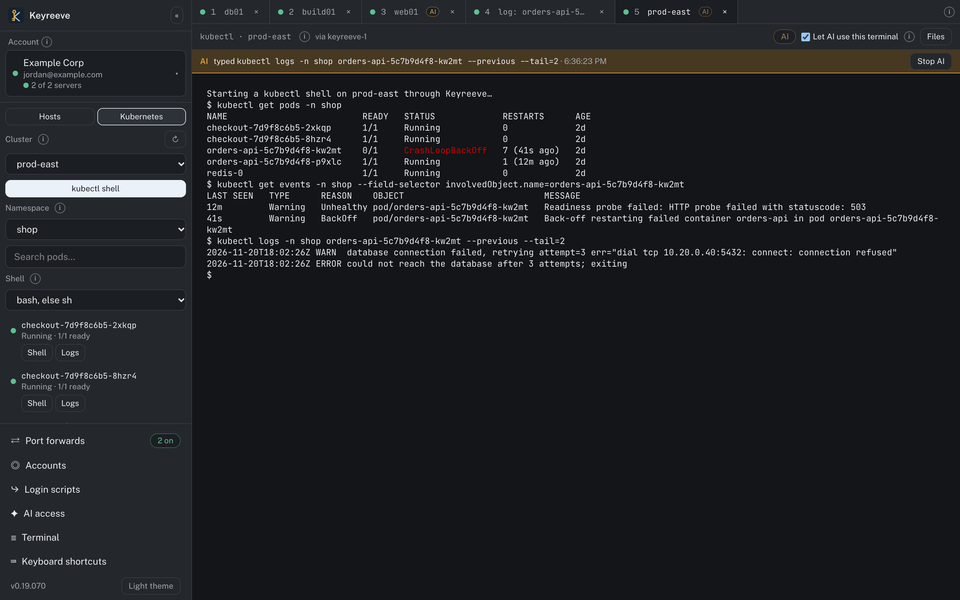
In the desktop app, a tab the AI may use is marked, a banner shows each command it types as it types it, and Stop AI takes the permission away at once.
The result is that engineers spend significantly less time on routine diagnostics and more on the decisions that matter. Security teams don’t have to choose between that speed and oversight: the AI’s access is scoped, time-limited and fully recorded, like everyone else’s.
High availability
Keyreeve is the way into your fleet, so it can’t be a single point of failure. You can run several Keyreeve servers as one cluster, and every server is a full peer: each one signs people in, issues certificates, relays terminals and takes recordings, and changes made on any server reach the others within moments.
- Set up in the web interface. Create the cluster on one server, then join others with a one-time join token. The servers talk to each other only over mutual TLS, with certificates from the cluster’s own certificate authority, and those certificates renew themselves.
- Hosts fail over by themselves. Every host agent knows all the servers. It keeps a home server, and if that server goes away it moves to another without anyone touching the host.
- People fail over too. The desktop app checks each server every 15 seconds, spreads new tabs across the healthy ones, shows how many are up, and reconnects a dropped tab through another server. Kubernetes access works through any server in the same way.
- Upgrades without downtime. Servers can be upgraded one at a time while the cluster keeps running.
Break-glass: a way in, whatever happens
Keyreeve locks SSH down. Hosts accept Keyreeve certificates only, and the usual side doors (authorized_keys files, passwords and keyboard-interactive logins) are turned off, so the way in is through your identity provider and your access rules.
The one deliberate exception is the break-glass accounts you configure, so you can always reach your own machines, even if your Keyreeve cluster is offline, or people or hosts can’t reach it:
- Which accounts: named accounts only, never root, chosen per host or host group.
- From where: each account can be limited to the source networks you allow.
- How: a key, a password, or both. Keyreeve can manage the credentials for you (sealed at rest, generated and rotated), or leave the host’s own credentials in place.
- Independent of Keyreeve: a break-glass login never contacts the Keyreeve servers. With the host’s own credentials, it works even with the Keyreeve agent stopped. Break-glass is never blocked by licensing, and when a host refuses logins because it can’t record them, break-glass is still let in.
Know whenever someone uses break-glass
A way around Keyreeve is only safe if you know when it’s used. Every break-glass login is reported by the host and written to the audit log at error severity, and each break-glass policy can send a notification to the email addresses and the webhook you choose, so your team hears about it straight away. For a shared account, Keyreeve reports which key was used, so you can tell who it was. An account used by automation, such as a tunnel, can stay in the log without raising alerts.
Logins with the host’s own credentials go around Keyreeve entirely, which is what lets them work when everything else is down, so they aren’t recorded. sshd’s log and Keyreeve’s login index still show every one, and the notification makes sure it doesn’t go unnoticed.
Other ways in
The desktop app isn’t the only route, and every route is recorded the same way:
- Your own terminal, with
sshand a Keyreeve certificate, orkubectlsigned in through Keyreeve - The web terminal, a full terminal in the browser with a file browser; uploads can be scanned for malware before they reach the host, and every transfer is recorded with its checksums
- The SSH gateway, which Keyreeve terminates and records on the server; hosts can be set to accept sessions only through it
Kubernetes access rules grant namespaces, pods by label, or a whole cluster to groups, and temporary access works there too.
Built for your security operations
- An audit log that can’t be changed from the interface, searchable, and shipped to your syslog server over TLS or to a webhook
- A live session feed for your SIEM: logins, commands and programs run, as JSON, as they happen
- Agent updates that roll back on their own if a new version doesn’t come up cleanly
Getting started
Keyreeve runs on your own infrastructure. Its host agent is packaged for Debian- and Red Hat-based Linux distributions, and people download the desktop app straight from your Keyreeve server. If you’d like to see it on your fleet, or want to know how it would fit with your identity provider, Kubernetes clusters and SIEM, talk to our team.